Multi-ballot elections
Run several ballots in a row inside one election, with the same voters.
A multi-ballot election runs several ballots, one after another, with the same voters. A runoff is the usual case: the same position runs again without the winner. Each ballot has its own votes, confirmation codes, results, and insights.
Multi-ballot is for elections only and needs the Starter plan or above. If an event moves to the Free plan, its ballots and results stay readable, but you cannot add new ballots.
Turn it on
- Before the event starts. In Settings > Ballot, or the Ballot page's Settings tab, turn on Multi-ballot. It saves right away. Your positions move into Ballot #1. You can turn it off again before the start, while Ballot #1 is the only ballot.
- After a single-ballot election ends. Select New ballot on the Ballot page or in the Multi-ballot row in Settings. See Add a ballot after the event ends.
Once voting starts, multi-ballot stays on. It cannot be on together with paper ballots.
The Ballots page
With multi-ballot on, the sidebar shows Ballots. The page lists every ballot, newest first, with its status, positions, turnout, and open and close times. Select a ballot to edit its positions on its own page.
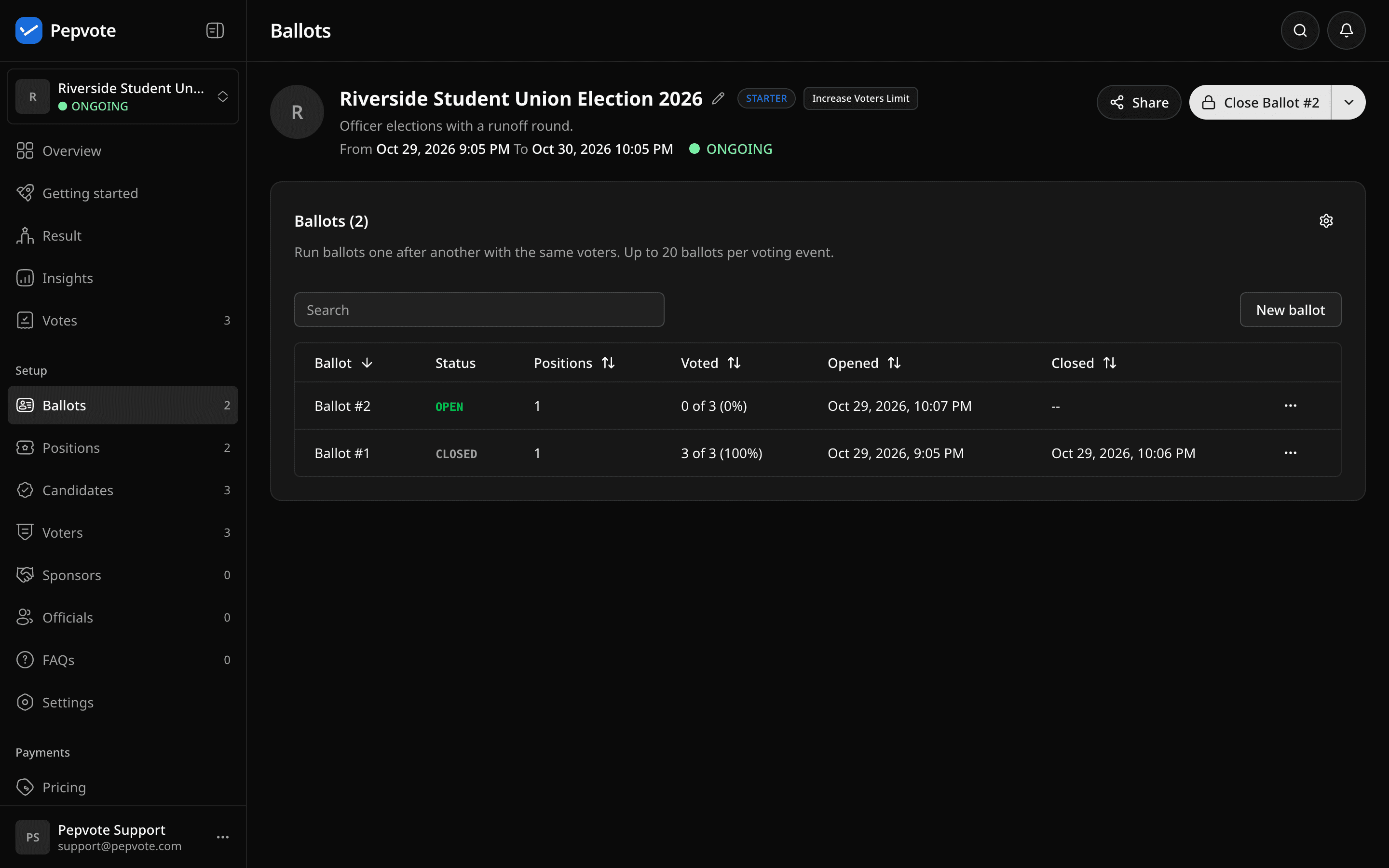
An event can have up to 20 ballots.
Create a ballot
Select New ballot to add a blank draft. You can do this before the event starts, and you can keep several drafts, so you can prepare every ballot of a meeting ahead. Creating a draft never closes the open ballot. Ballots are numbered in order (Ballot #2, Ballot #3) and cannot be renamed.
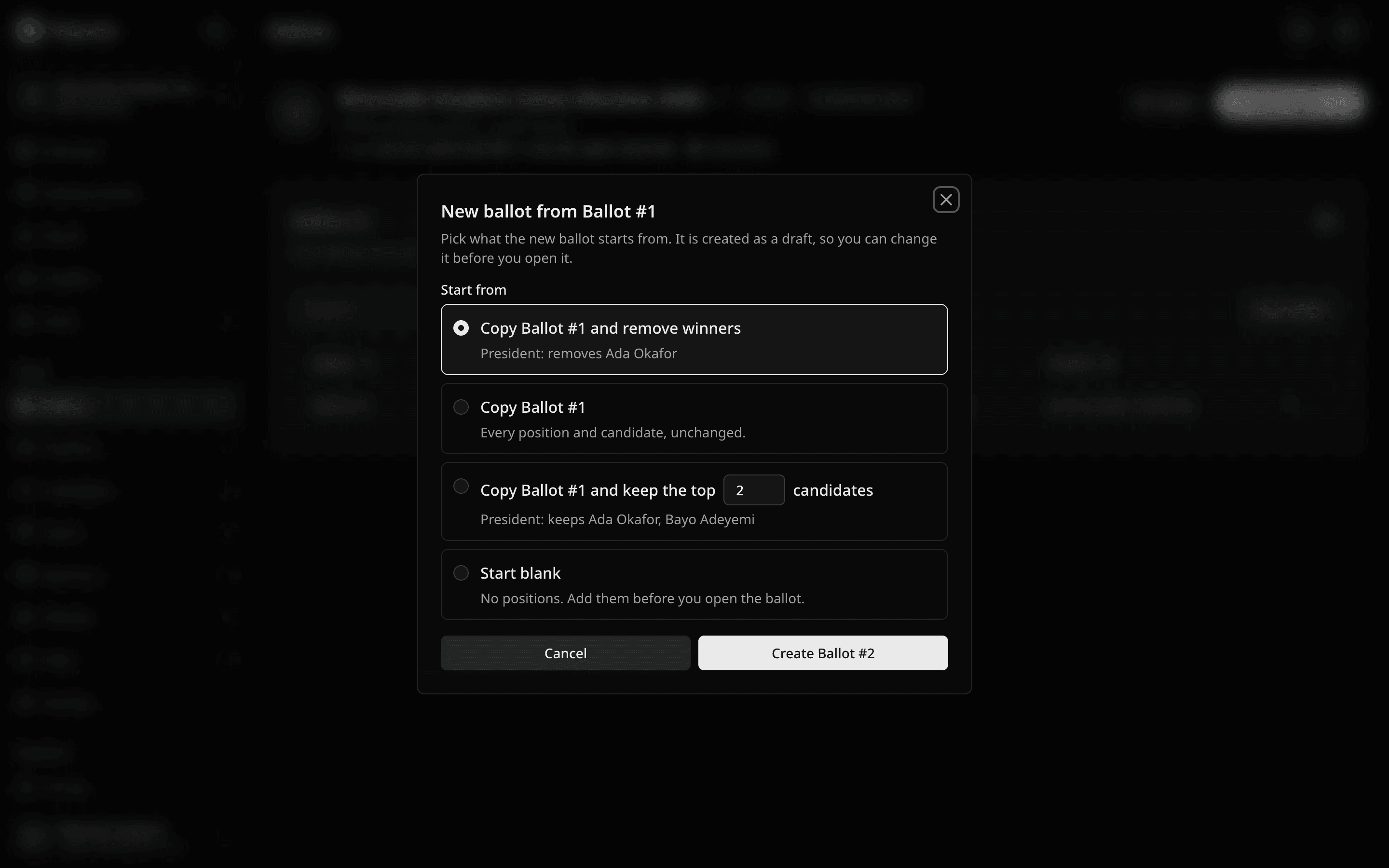
To build a ballot from another one, for example a runoff, open that ballot's menu on the Ballots page and select New ballot from this ballot. Pick how the new ballot starts:
- Copy and remove winners drops each position's winners, up to its number of seats. Shown only when that ballot has closed with votes.
- Copy keeps every position and candidate.
- Copy and keep the top N keeps the top N candidates. Shown only when that ballot has closed with votes.
- Start blank has no positions.
The dialog shows what each option keeps or removes. Ties at the cut keep every tied candidate. Referendums, ranked choice positions (when you remove winners), and positions with no votes copy unchanged. Votes and confirmation codes never copy.
Open and close ballots
A new ballot starts as a draft. Voters never see drafts. Check its positions, then select Open ballot. You can open drafts in any order, but only one ballot can be open at a time, so close the open one first.
Ballots that have run keep their numbers, in the order they opened. When you open a draft out of order, it takes the next number, and the drafts it passes move up one. For example, with Ballot #1 and #2 done and drafts #3, #4, and #5, opening #5 makes it Ballot #3, and #3 and #4 become #4 and #5. The dialog lists the changes before you confirm.
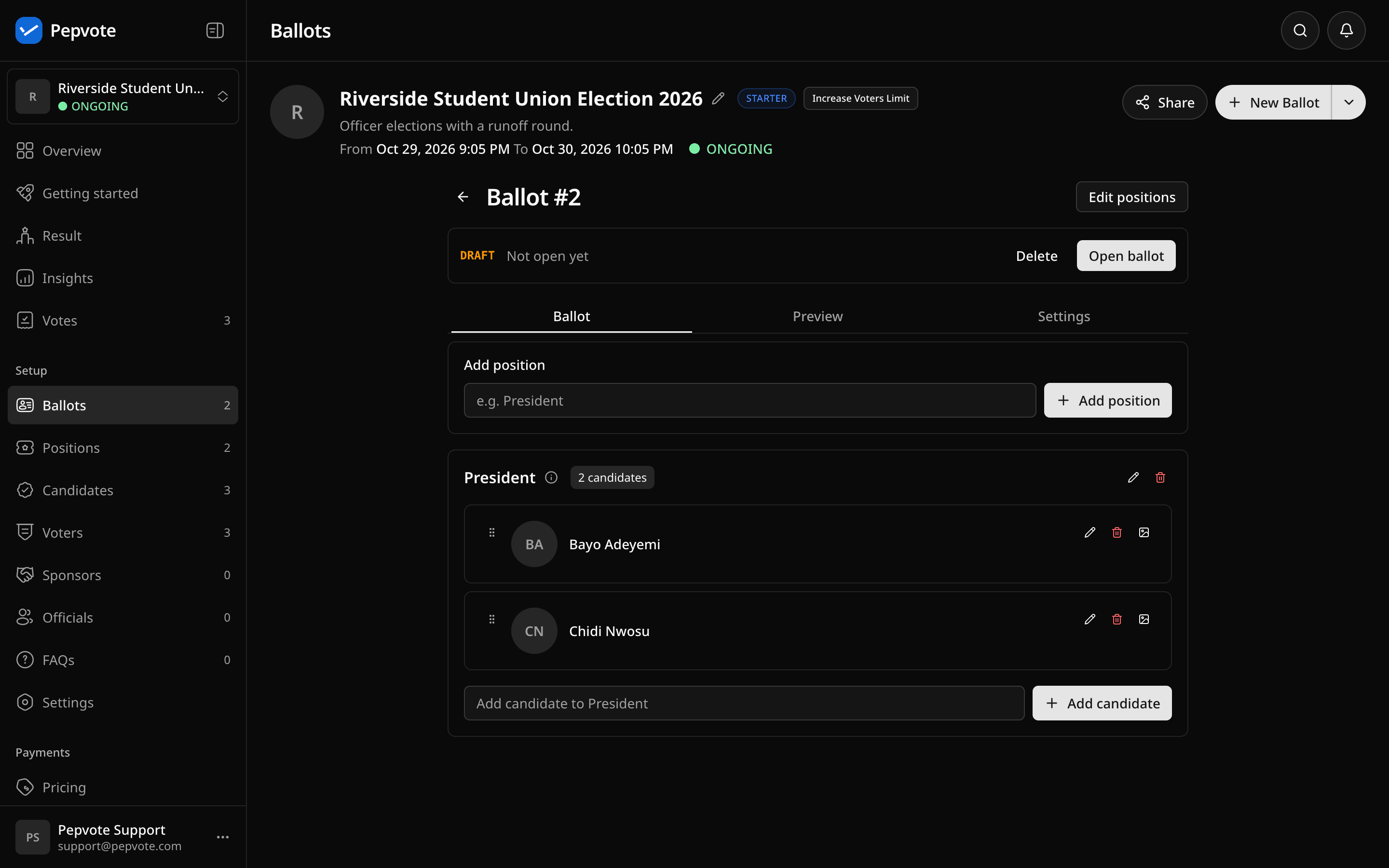
- Ballot #1 opens when the event starts.
- Close ballot ends voting on the open ballot.
- Reopen ballot opens the ballot that closed last again while the event is live and no other ballot is open. Voters who already voted on it cannot vote again. If you made a draft from its result (remove winners or keep the top N), delete that draft first.
- Delete removes any draft that has not opened. Later drafts move down one, so ballot numbers have no gaps. The dialog lists the changes.
- When the event ends, the open ballot closes.
The button at the top right follows the meeting: Close Ballot #N while a ballot is open, and New Ballot otherwise. Its arrow opens the next draft, reopens the ballot that closed last, or ends voting with End Now.
To close ballots automatically, turn on Close a ballot when every voter has voted in the Multi-ballot settings. It does not apply to ballots with group-restricted positions. Closing never opens the next ballot.
While the event runs, you can edit any draft's positions and candidates. Open and closed ballots, groups, and voting settings stay locked.
Add voters who arrive late
While no ballot is open, you can add voters on the Voters page with Add or Import, or approve a pending registration. They can vote from the next ballot you open. You can also edit a voter who has not voted yet, for example to fix a name or a weight. A voter who already voted stays locked until the event ends.
While a ballot is open, Add and Import are off and edits are refused, so close the ballot first. Removing voters stays locked while the event runs.
Each ballot keeps the voter count it closed with. Voters you add later count toward the next ballot's turnout, not the earlier ones.
Add a ballot after the event ends
You can add a ballot until the event locks, 7 days after it ends. On a multi-ballot event, New Ballot sits at the top right. Its arrow opens Reopen Voting and View Result.
- Select New ballot. It starts from the last ballot, so pick a copy option or Start blank.
- Keep No end time or pick a new end time. Voting goes live again.
- Check the new draft and open it.
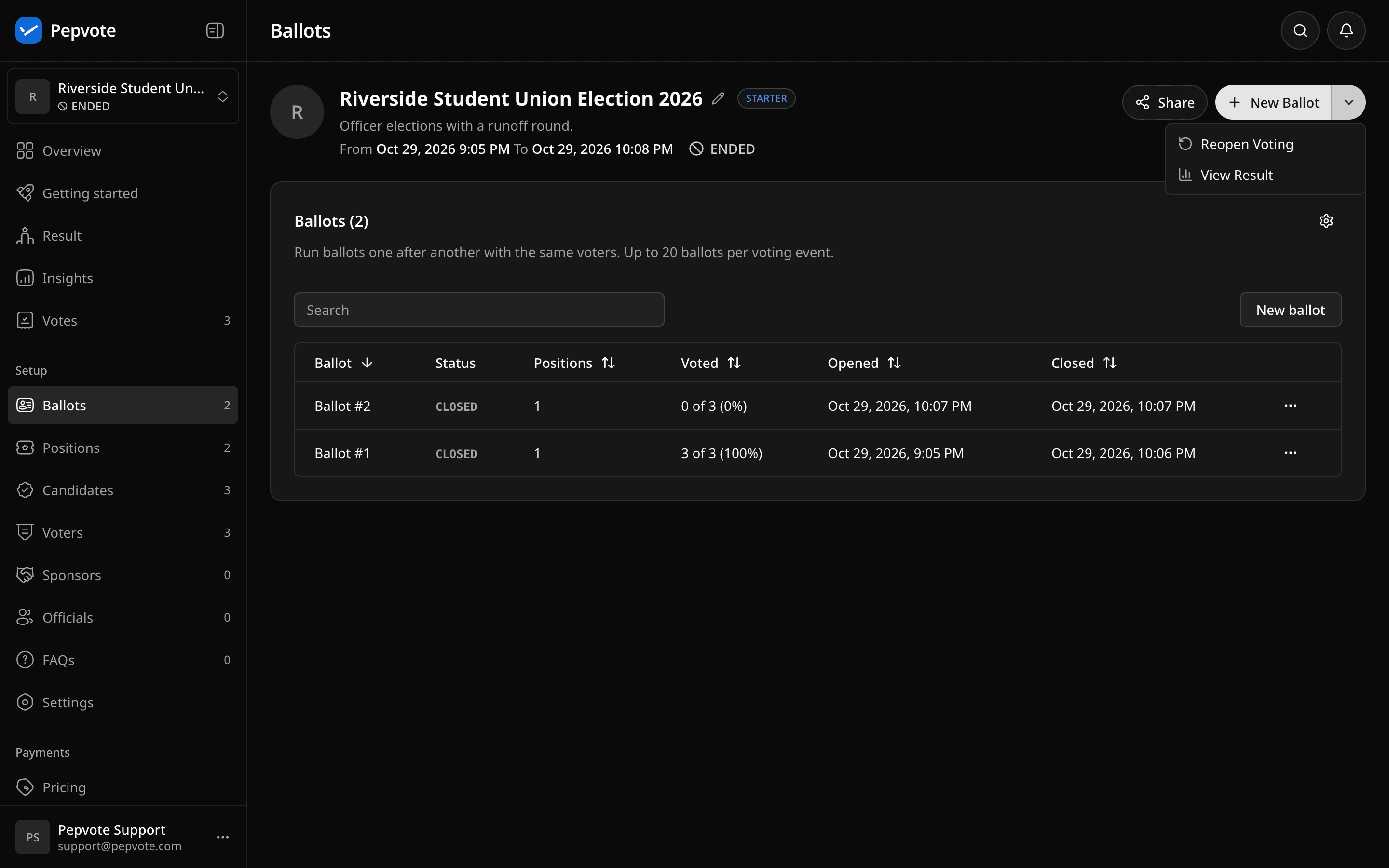
On a single-ballot election, this also turns on multi-ballot. The old ballot becomes Ballot #1 (closed).
What voters see
Voters sign in once with their voter key, an email voting link, or the registration browser check. They can select I have my voter key to type a key they already have. The browser then remembers them until the event ends, so Cast votes takes them straight to the open ballot.
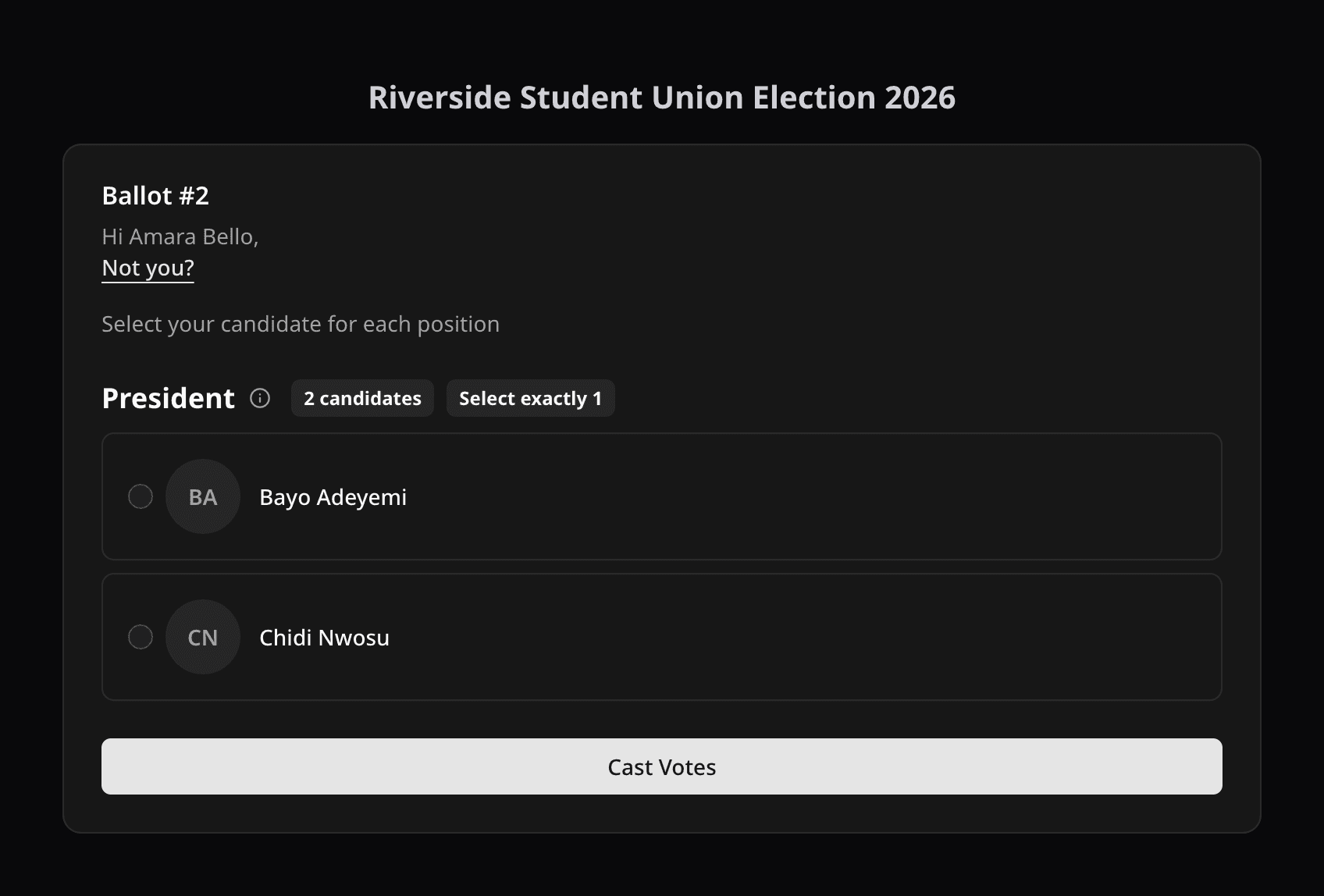
After voting, they see the confirmation code for that ballot. When the ballot closes, they see its result right away, with the Votes and Voters stats, and wait for the next one. You do not need to turn on Live Result for this. The page moves to the next ballot on its own.
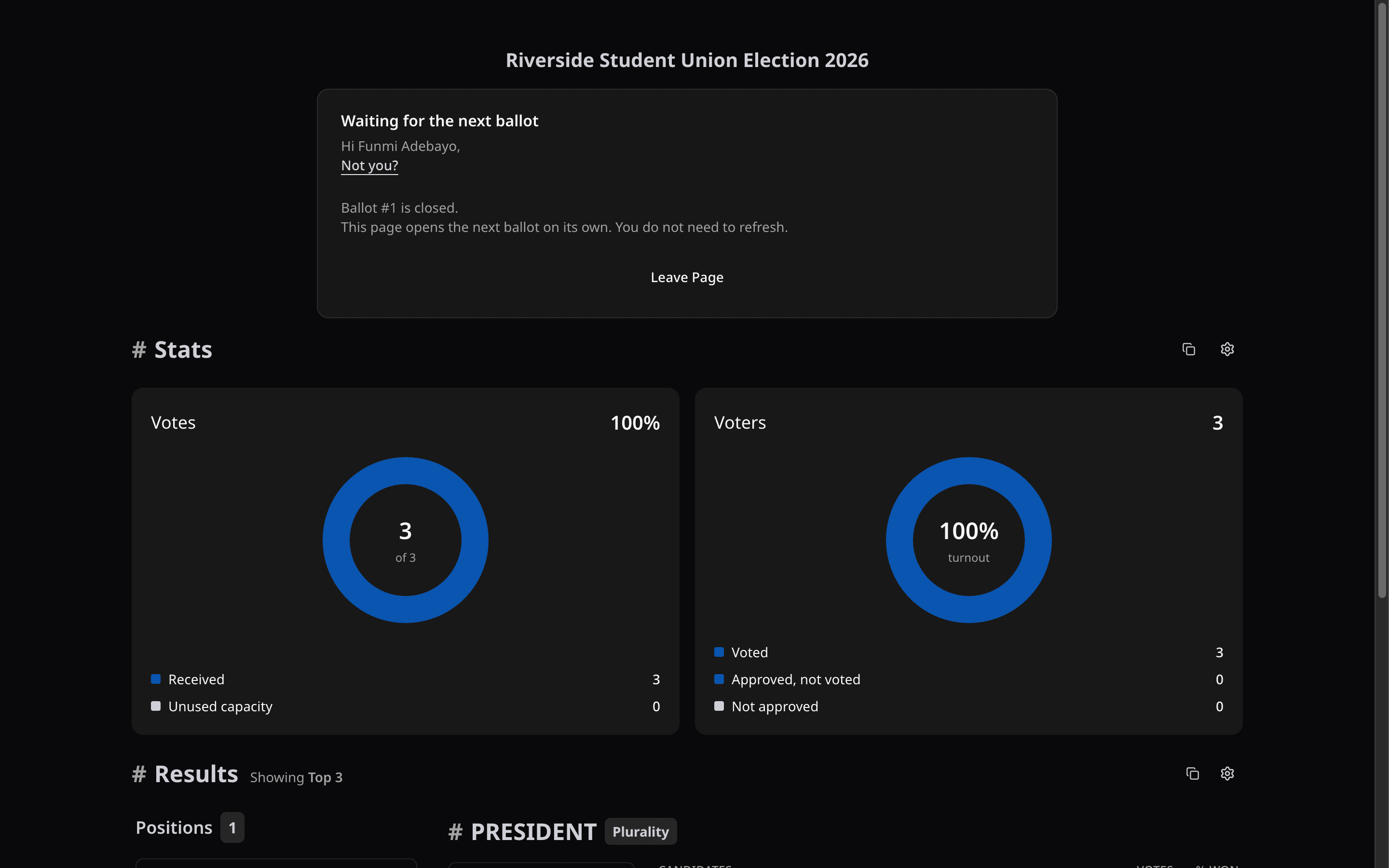
- A voter who missed one ballot can still vote on the next.
- Not you? under the voter's name signs them out on that browser.
- On a new browser, they enter their key again. It works on every ballot.
- Voting centers do not remember voters. They verify at the kiosk for each ballot.
Results and insights
Results and insights open on the latest ballot. Links under the header switch between All ballots and each ballot. The Votes page has a ballot filter.
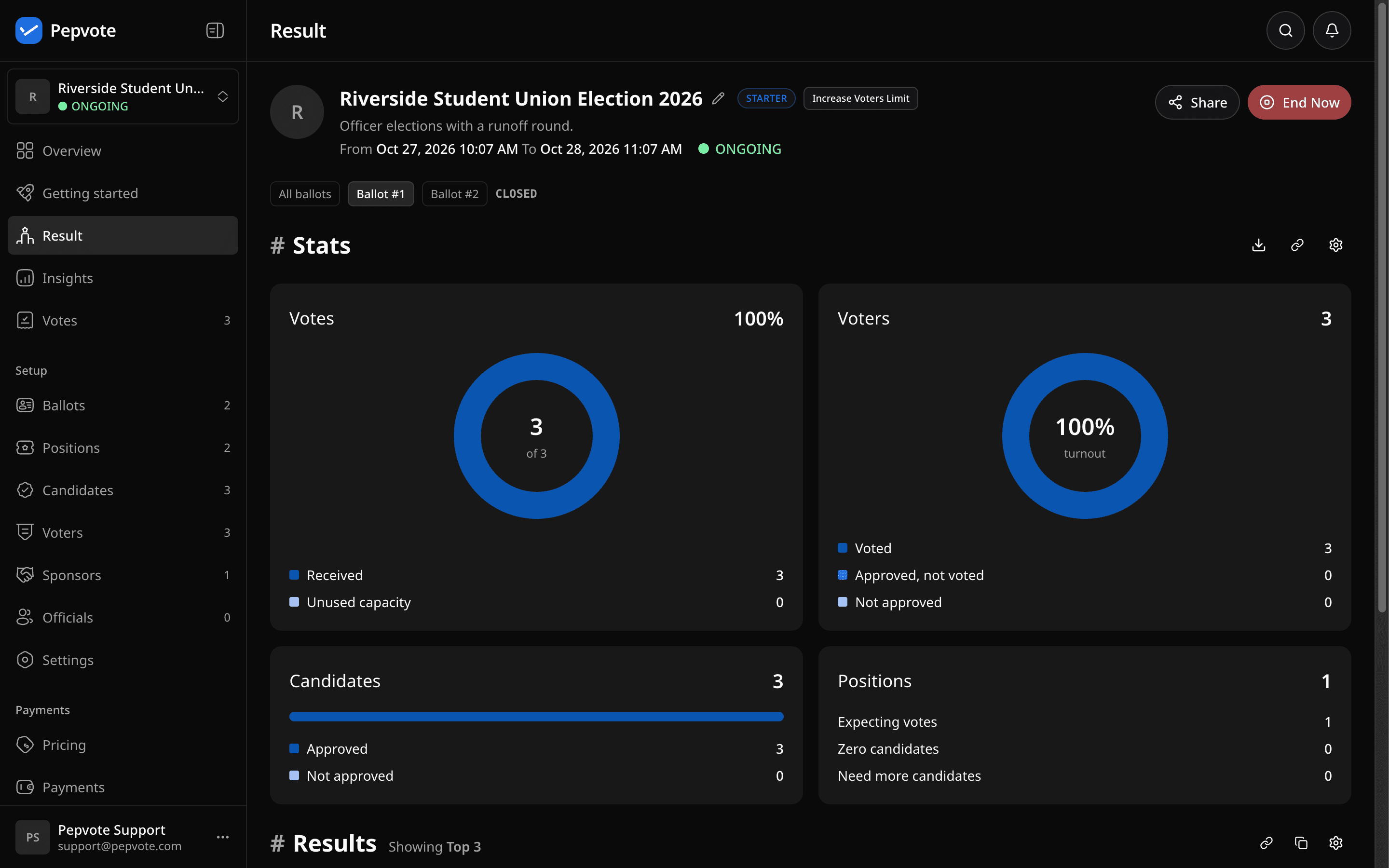
All ballots shows each ballot in its own section. Positions with the same title on different ballots are never added together.
On the public result page, a ballot's result shows as soon as the ballot closes, even with Live Result off. The open ballot stays hidden until you close it. All ballots shows the closed ballots together. After the event ends, every ballot shows. With results published, the page opens on All ballots.
On the Voters page, Voted is YES when a voter voted on at least one ballot. Hover over YES to see which ballots.
Not available yet
- Paper ballots with Multi-ballot elections.
- Voting through the public API for Multi-ballot elections. Read endpoints still work.
- Start and end times for each ballot, renaming ballot titles, and removing voters between ballots.
Related help
Last updated October 29, 2026