Voting event
Voting event settings
Every switch in Voting Event Settings and what it does.
Open the event and select Voting Event Settings. You need to be the Owner or a Manager.
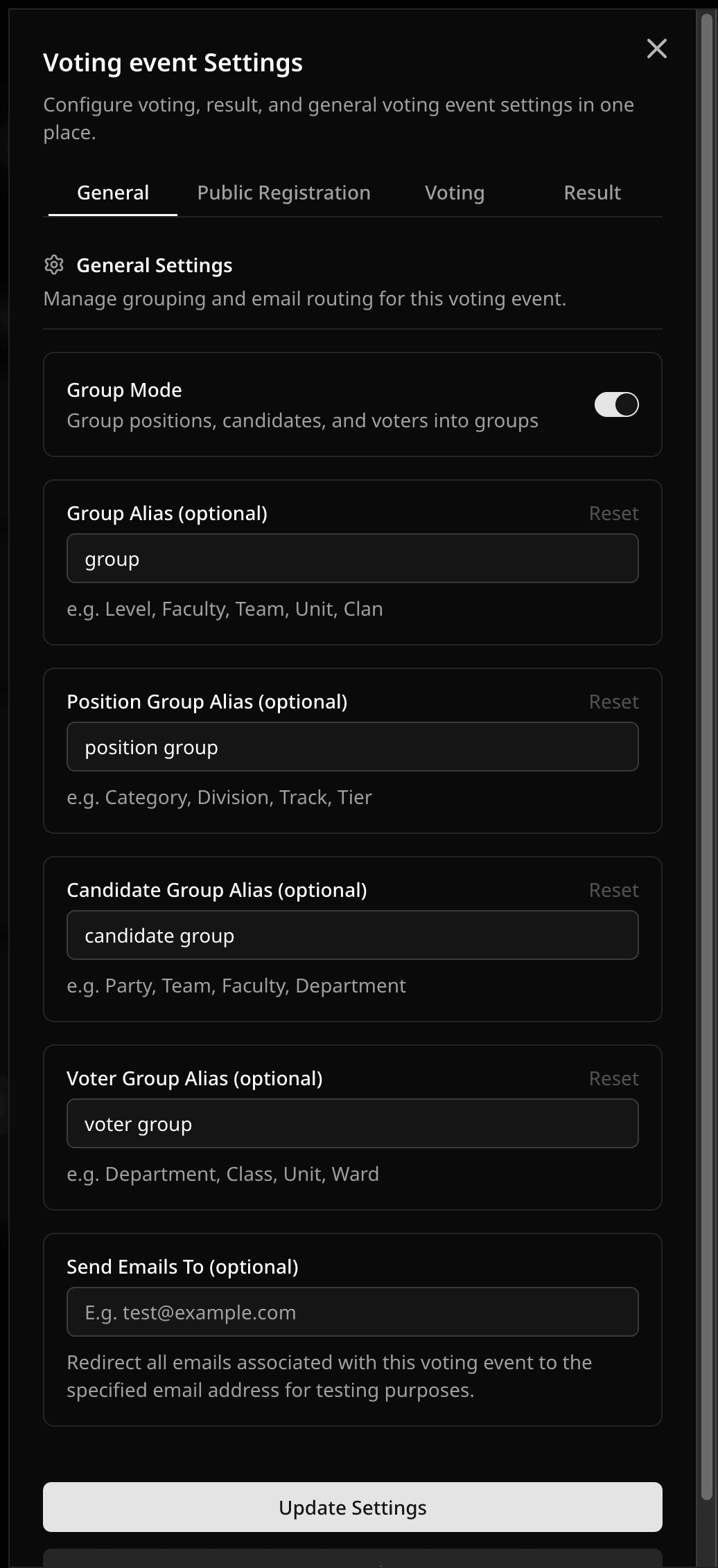
General
- Group Mode adds a Groups tab so you can organize positions, candidates, and voters. See Group Mode.
- Send Emails To sends participant and official emails to one test address instead of the real recipients. Clear it before you go live. Voting-started and export emails ignore it.
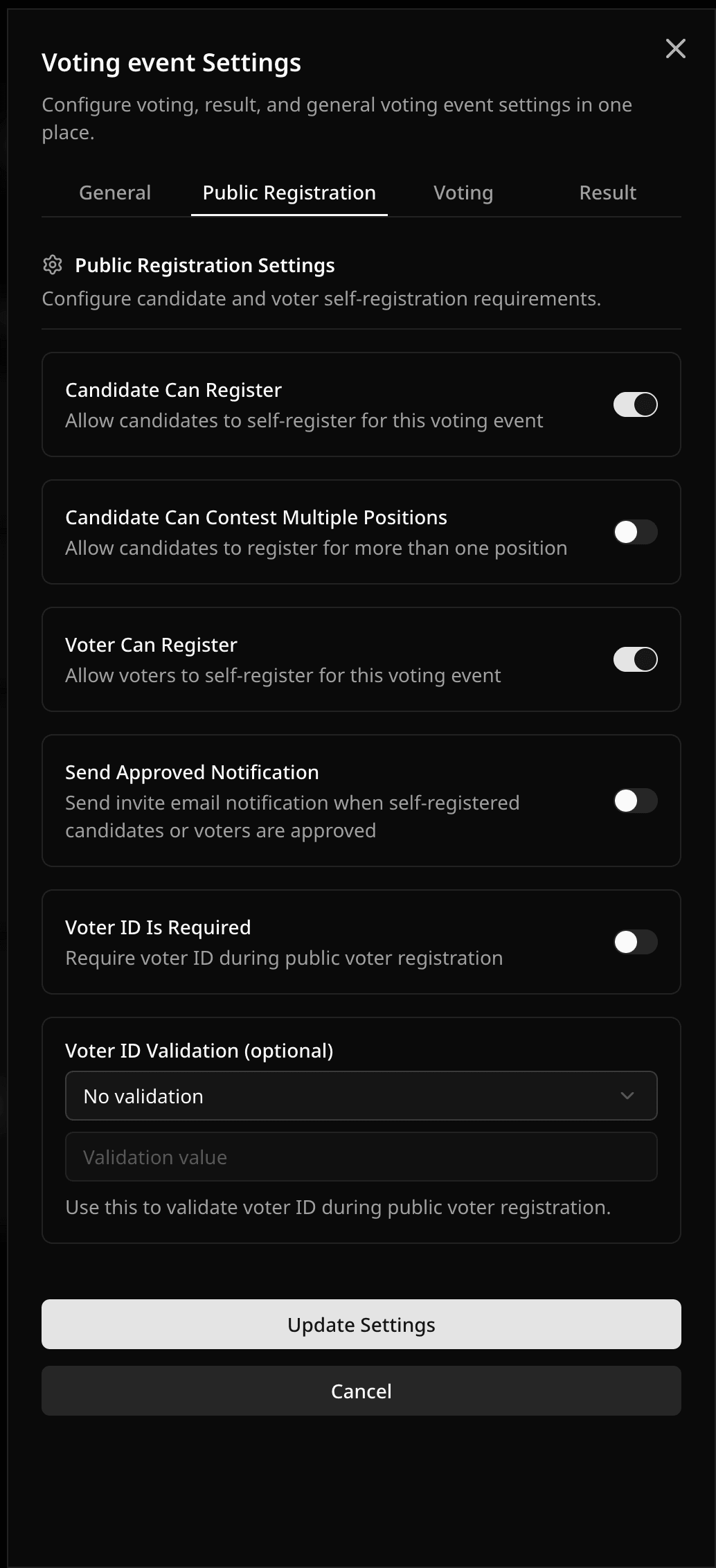
Public registration
- Candidate Can Register lets candidates apply through a public link. You still approve them. You can let them pick more than one position and email them when approved.
- Voter Can Register (elections only) lets voters sign up through a public link. You still approve them. You can require a Voter ID that must contain, start with, or end with a pattern.
- Registration closing time stops registration before voting starts. It must be earlier than the start time. Without one, registration closes when voting starts.
See Self-registration.
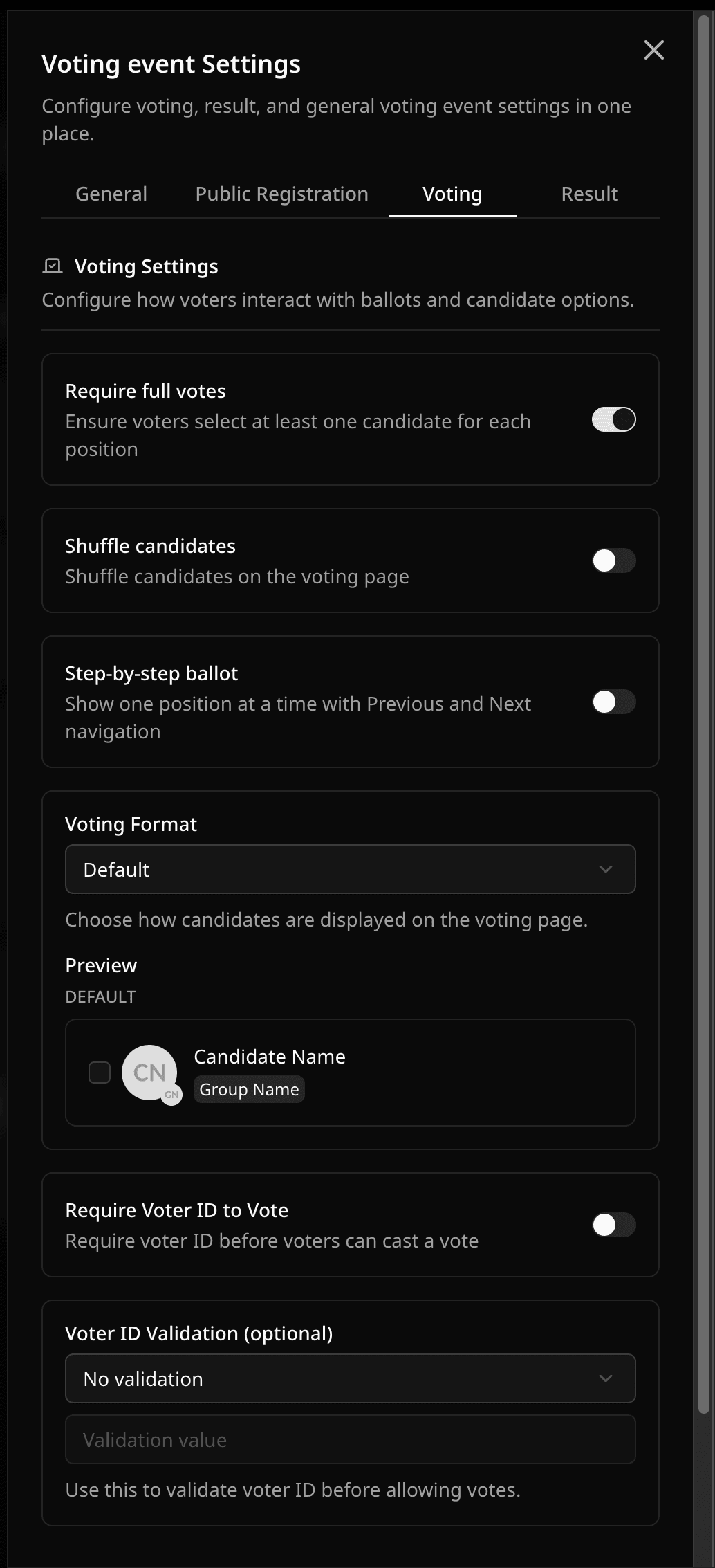
Voting
- Shuffle Candidates randomizes candidate order for each voter.
- Step-by-step ballot shows one position at a time.
- Voting Format picks the ballot layout. See Voting format.
- Require Voter ID to Vote asks for a Voter ID before the ballot opens.
- Save Voter Info During Voting (polls) asks for a name and email before the ballot. Each email can vote once.
- Limit to One Ballot per IP Address (polls) accepts one ballot per internet connection, not just per browser. See Public voting.
- Block Ballots from VPNs (polls) refuses ballots from known VPN and Tor addresses. See Public voting.
- Enable Weighted Voting counts each voter by their weight. See Weighted voting.
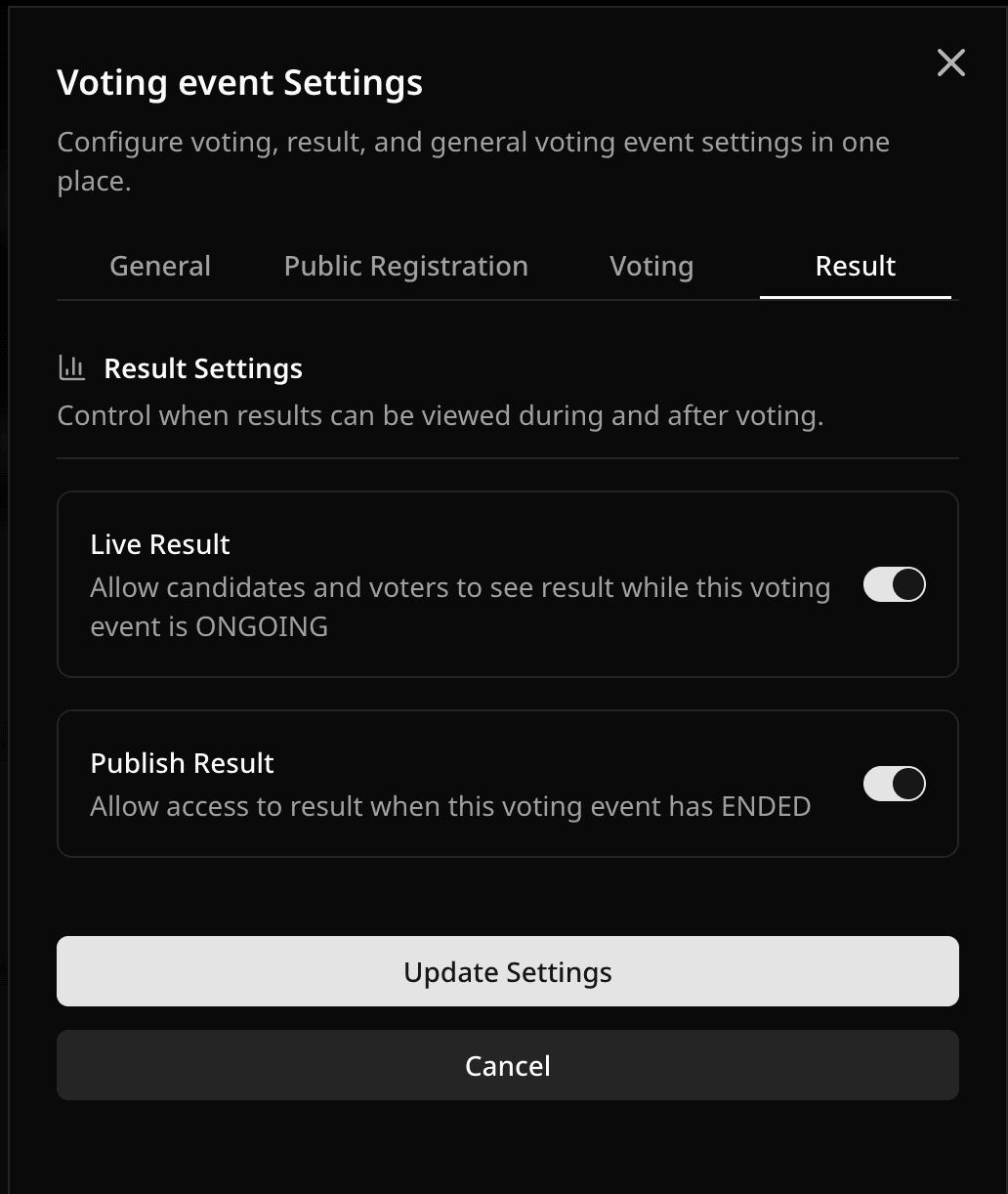
Result
- Live Result makes the result public right away, even before voting starts, until you turn it off.
- Publish Result makes the result public after the event ends.
- Show Top Candidates sets how many candidates each position shows first (2 to 10, default 3).
Multi-ballot
Shown for elections only, in the ballot settings above Paper ballots: the Ballot tab here, and the Settings tab on the Ballot page. Changes save right away. See Multi-ballot elections.
- Multi-ballot runs several ballots in this event, one after another, with the same voters. You can change it before the event starts. It stays on once voting starts. After a single-ballot election ends, the row shows New ballot, which turns the event multi-ballot. It needs the Starter plan or above.
- Close a ballot when every voter has voted closes the open ballot once every approved voter has voted on it. A ballot with group-restricted positions is not closed by this setting. It appears only while multi-ballot is on.
Paper ballots
Shown in the same ballot settings, under Multi-ballot. Changes save right away. It needs the Starter plan or above. See Paper ballots.
- Paper ballots closes online voting. Voters mark printed ballots, and officers scan or record them on the Paper ballots page. It cannot be on together with multi-ballot, and you cannot turn it off after the first ballot is counted.
- The counting window (12 hours after voting closes by default) is set on the Paper ballots page, under the gear.
Plan features
Some tabs only appear when the event plan includes them: Custom domain and Voting centers on Custom plan, Webhooks on all plans. See the FAQ for what each plan unlocks.
Related help
Was this helpful?
Last updated October 28, 2026